
Connect your email server to Triage Center
After access is enabled, Triage Center lets your security team investigate reported messages and apply remediation actions to connected employee mailboxes. Jericho Security requires specific permissions from your email server for these actions. This page covers connecting Google Workspace or Microsoft Office 365. For daily use, see Review and manage Triage Center cases.
Features available after integration
Section titled “Features available after integration”With the add-on enabled and an active email server connection, you can use:
- Centralized Threat Management — A dedicated dashboard where your security officers can manage email threats and execute remediation actions.
- Email Labeling — A remediation action can move a message out of the inbox into the Jericho Flagged label or folder.
- Email Blocking — Sender rules can move future matching messages out of connected inboxes. Connecting an email server alone does not automatically block every harmful message.
Google Workspace setup
Section titled “Google Workspace setup”Log in to your Google Workspace admin console
Section titled “Log in to your Google Workspace admin console”Sign in with a Google Workspace super administrator account.
Open Domain-Wide Delegation settings
Section titled “Open Domain-Wide Delegation settings”Navigate to Security > Access and data control > API controls > Manage Domain Wide Delegation:
https://admin.google.com/ac/owl/domainwidedelegation
Add a new API client
Section titled “Add a new API client”Confirm the current Triage Center client ID with Jericho Support, then click Add new and enter that value. The previously documented Triage Center client ID is shown below; it is separate from the DMI client and needs confirmation before granting access:
109158472569679787403Add the required OAuth scopes
Section titled “Add the required OAuth scopes”In the OAuth scopes field, enter all of the following scopes as a comma-separated list:
https://www.googleapis.com/auth/gmail.labels,https://www.googleapis.com/auth/gmail.modify,https://www.googleapis.com/auth/gmail.readonly,https://www.googleapis.com/auth/gmail.settings.sharing,https://www.googleapis.com/auth/gmail.settings.basicClick Authorize
Section titled “Click Authorize”Click Authorize to save the new API client entry.
Return to the Integrations page in Jericho and create your domains
Section titled “Return to the Integrations page in Jericho and create your domains”In the Jericho Security platform, navigate to the Integrations page and create your organization’s domains.
Create a Google Workspace Email Server and add your domains
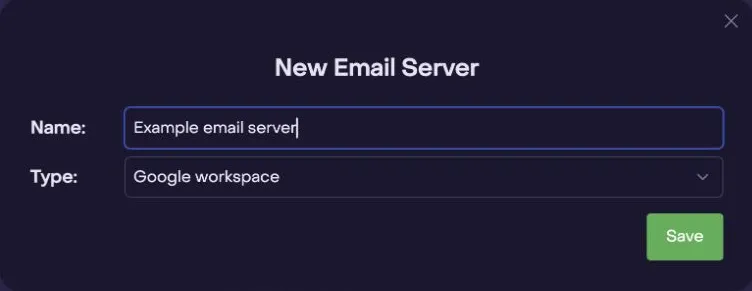
Section titled “Create a Google Workspace Email Server and add your domains”Under Email Servers, click +, enter a name, select Google workspace, and click Save. Reopen it with Edit, add the domains under Associated Domains, and save again.
Activate the Email Server
Section titled “Activate the Email Server”Close the Email Server modal, then click the activate toggle next to your Email Server in the table.
Confirm successful integration
Section titled “Confirm successful integration”A green indicator means the configured health check passed. It does not verify every remediation action. Test with a harmless reported message and confirm the expected mailbox result.
Microsoft Office 365 setup
Section titled “Microsoft Office 365 setup”Create a Microsoft Office 365 Email Server in Jericho
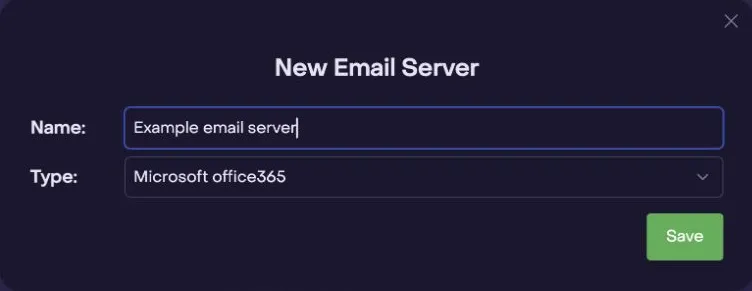
Section titled “Create a Microsoft Office 365 Email Server in Jericho”In the Jericho Security platform, navigate to Integrations. Under Email Servers, click +, enter a name, select Microsoft office365, and click Save.
Connect your Microsoft account
Section titled “Connect your Microsoft account”After saving the new Email Server, reopen it with Edit and click Connect Microsoft Office 365. You will be redirected to the Microsoft consent screen.
Accept the permissions request
Section titled “Accept the permissions request”Log in with your Microsoft admin account and click Accept. You will be redirected back to the Jericho Integrations page.
Configure your domains
Section titled “Configure your domains”Your domains are created automatically. Select which domains to associate with your Microsoft Office 365 Email Server.
Activate the Email Server
Section titled “Activate the Email Server”Close the Email Server modal, then click the activate toggle next to your Email Server in the table.
Confirm successful integration
Section titled “Confirm successful integration”A green indicator means the configured health check passed. It does not verify every remediation action. Test with a harmless reported message and confirm the expected mailbox result.
For Google Workspace, include at least one existing employee with a mailbox in each associated domain before checking the connection. The connection test needs an employee mailbox. Confirm Google delegation requirements in Google’s administrator guide.